
Section 5
X-Ray
What it does: cuts the part at as many planes as you like and turns each cut into a real Fusion 360 sketch: clean lines, arcs and splines that join into closed profiles. You can click a profile and extrude it, offset it, or dimension against it, like a sketch you drew yourself.
Why this matters. Fusion's own Create Mesh Section Sketch gives you an outline made of hundreds or thousands of separate points. You cannot select it as a profile or extrude it, so in practice you have to draw a new sketch around the shape by hand. X-Ray does that redrawing for you, for every slice at once.
| Fusion mesh section sketch | X-Ray sketch | |
|---|---|---|
| Made of | Hundreds or thousands of points | A few lines, arcs and splines |
| Closed profile you can select | No | Yes |
| Extrude, offset, dimension | Only after you trace it by hand | Straight away |
| Many slices | One plane at a time | A whole stack in one script |
X-Ray does not make a STEP. It downloads one Fusion 360 script that draws the sketches, each on its own plane, so you can model in Fusion yourself. It can also extrude every slice into a solid slab for you. If the mesh is already in a Fusion design, the Mesh to Outline add-in does the same thing without a download.
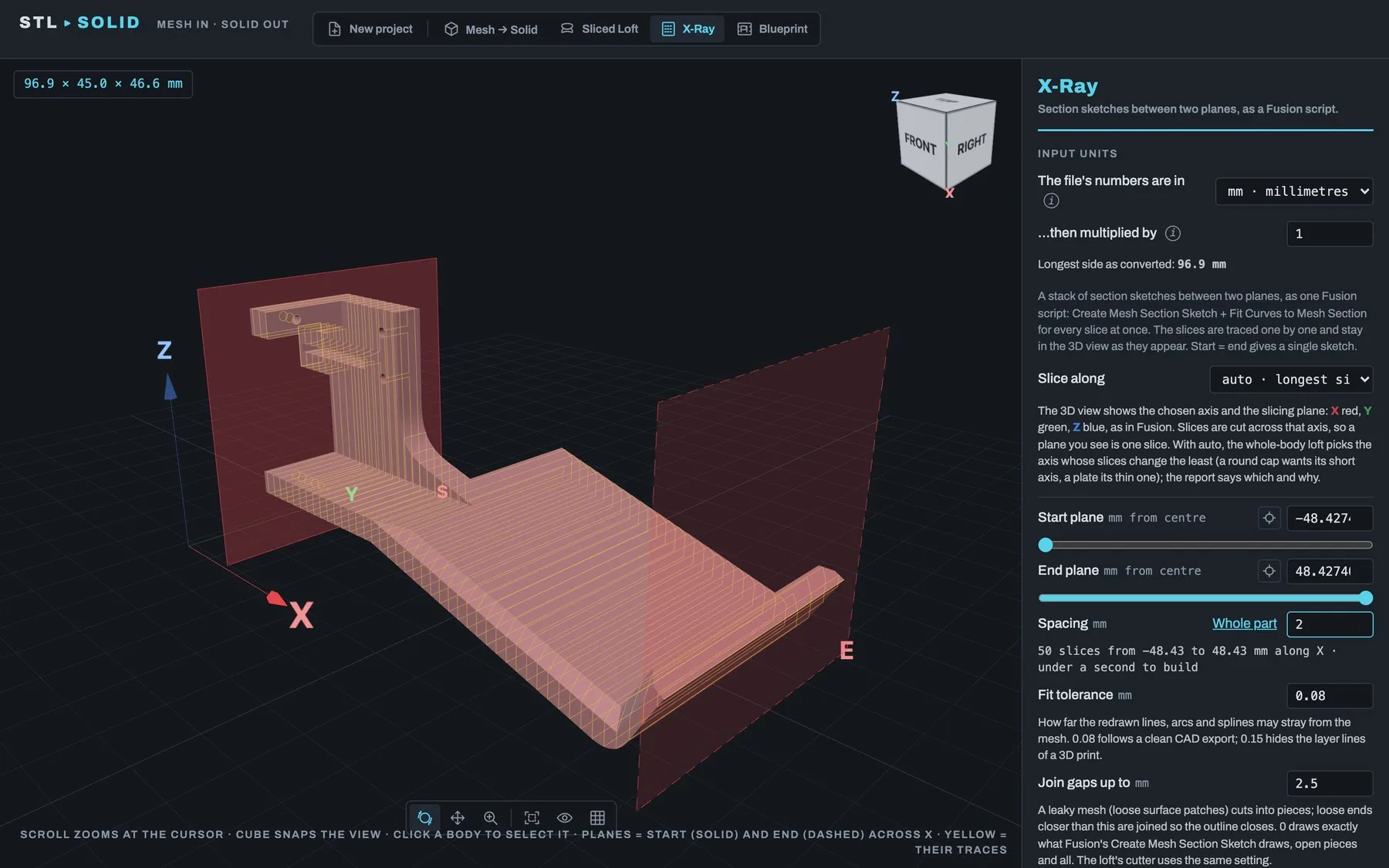
5.1 Settings: where to slice
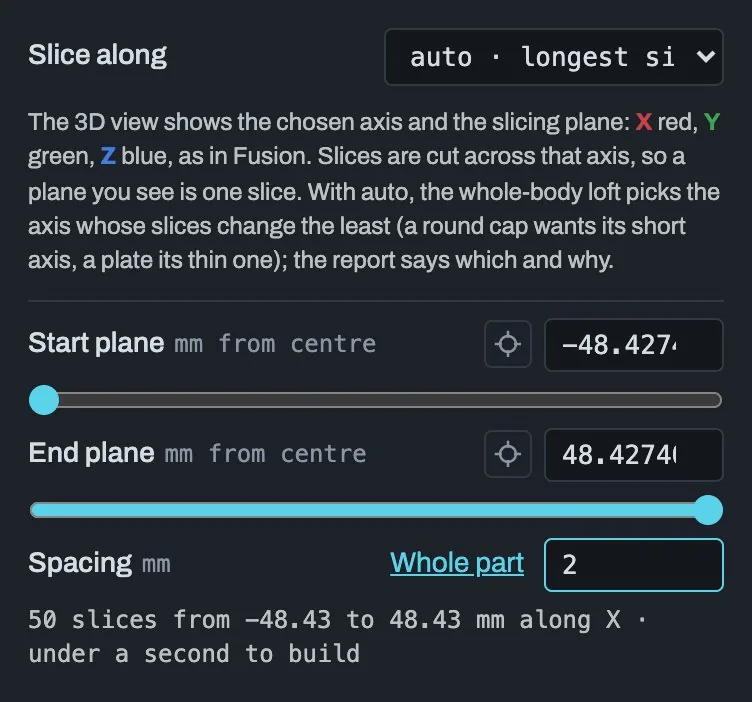
| Setting | Default | What it does |
|---|---|---|
| Slice along | auto | The axis to slice across. In X-Ray, auto uses the longest side. |
| Start plane / End plane | 0 mm from centre | Where the stack begins and ends, in mm from the part's centre. Each has a slider, a number box and a crosshair button: press it, then click a face in the 3D view to put the plane there. Start = end gives a single sketch. Start past end is fine. |
| Spacing | 0.2 mm | Distance between slices. Whole part moves the planes to both ends of the part. The line below shows the slice count and an estimated build time. |
5.2 Settings: how each slice is traced
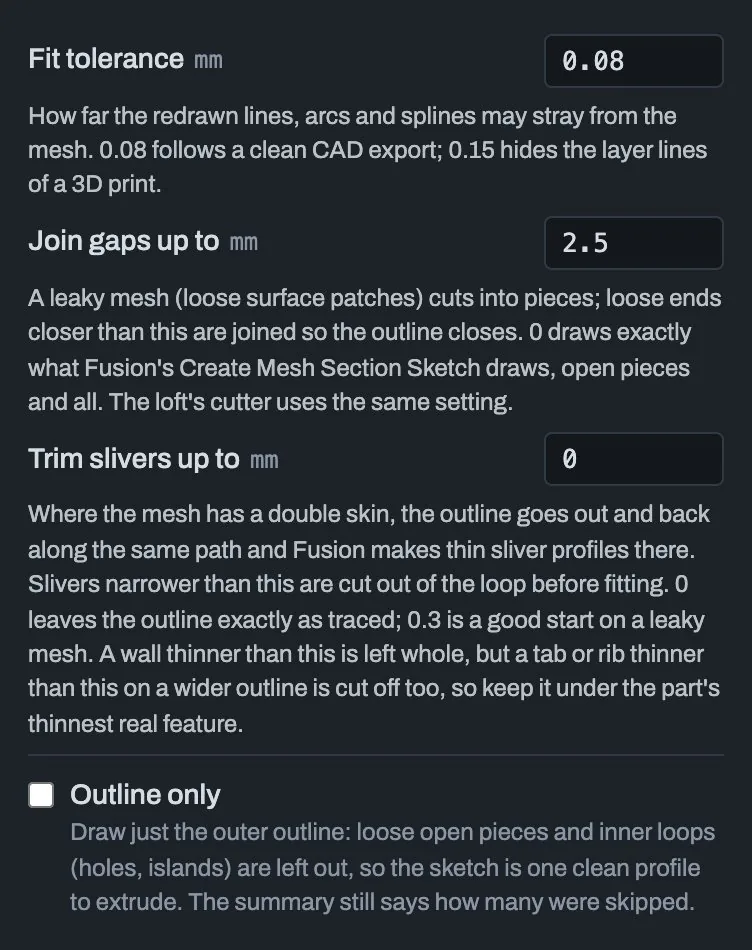
| Setting | Default | What it does |
|---|---|---|
| Fit tolerance | 0.08 mm | How far the fitted lines, arcs and splines may stray from the mesh. 0.08 follows a clean CAD export. 0.15 hides the layer lines of a 3D print. |
| Join gaps up to | 2.5 mm | As in Sliced Loft (section 4.3). X-Ray keeps its own value. |
| Trim slivers up to | 0 mm | As in Sliced Loft. X-Ray keeps its own value, so a trim set for a leaky loft does not eat the thin walls of the next part. If slivers were trimmed anywhere in the stack, a note says in how many slices. |
| Outline only | off | Just the outer outline of each slice: holes, islands and loose pieces are left out. About five times faster on organic shapes. |
5.3 Settings: slabs and the download
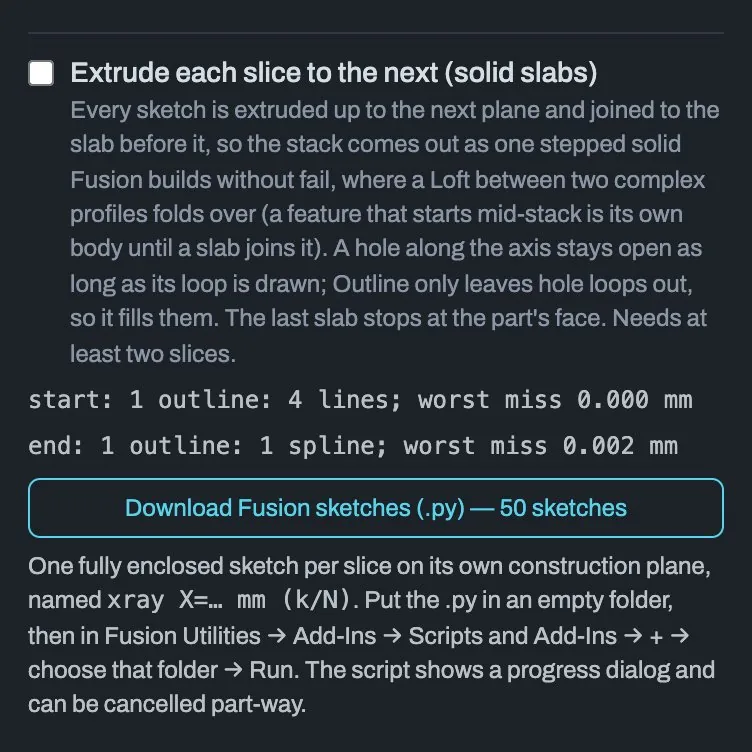
| Setting | Default | What it does |
|---|---|---|
| Extrude each slice to the next (solid slabs) | off | The script also extrudes every sketch up to the next plane and joins the slabs, giving one stepped solid that Fusion always builds. (A Loft between two complex profiles often folds over.) Holes along the axis stay open as long as their loops are drawn. Outline only leaves hole loops out, so it fills them. Needs at least two slices. |
The slices are traced one by one and stay in the view as they appear. Click stop to halt the tracing and trace the rest to carry on.
Click Download Fusion sketches (.py). The server fits every slice
(Working… with a spinner) and then hands you the script. Each slice
becomes a fully enclosed sketch on its own construction plane, named like
xray X=-18.50 mm (3/24). In Fusion, the script shows a progress dialog and
can be cancelled part-way.
Limits: at most 500 slices and about 4 minutes of fitting per download. If you go over, raise the spacing, narrow the range, or tick Outline only.