
Section 6
Blueprint
What it does: starts from a picture instead of a mesh. Drop or paste a dimensioned drawing (front, top and side views with their labels, like a datasheet). A vision AI model of your choice reads the labels into a small recipe: named parameters in millimetres and a short list of sketch + extrude features. The part is built from those numbers, so you can fix any it misread and rebuild. You get a parametric Fusion 360 script, a STEP and a 3D preview.
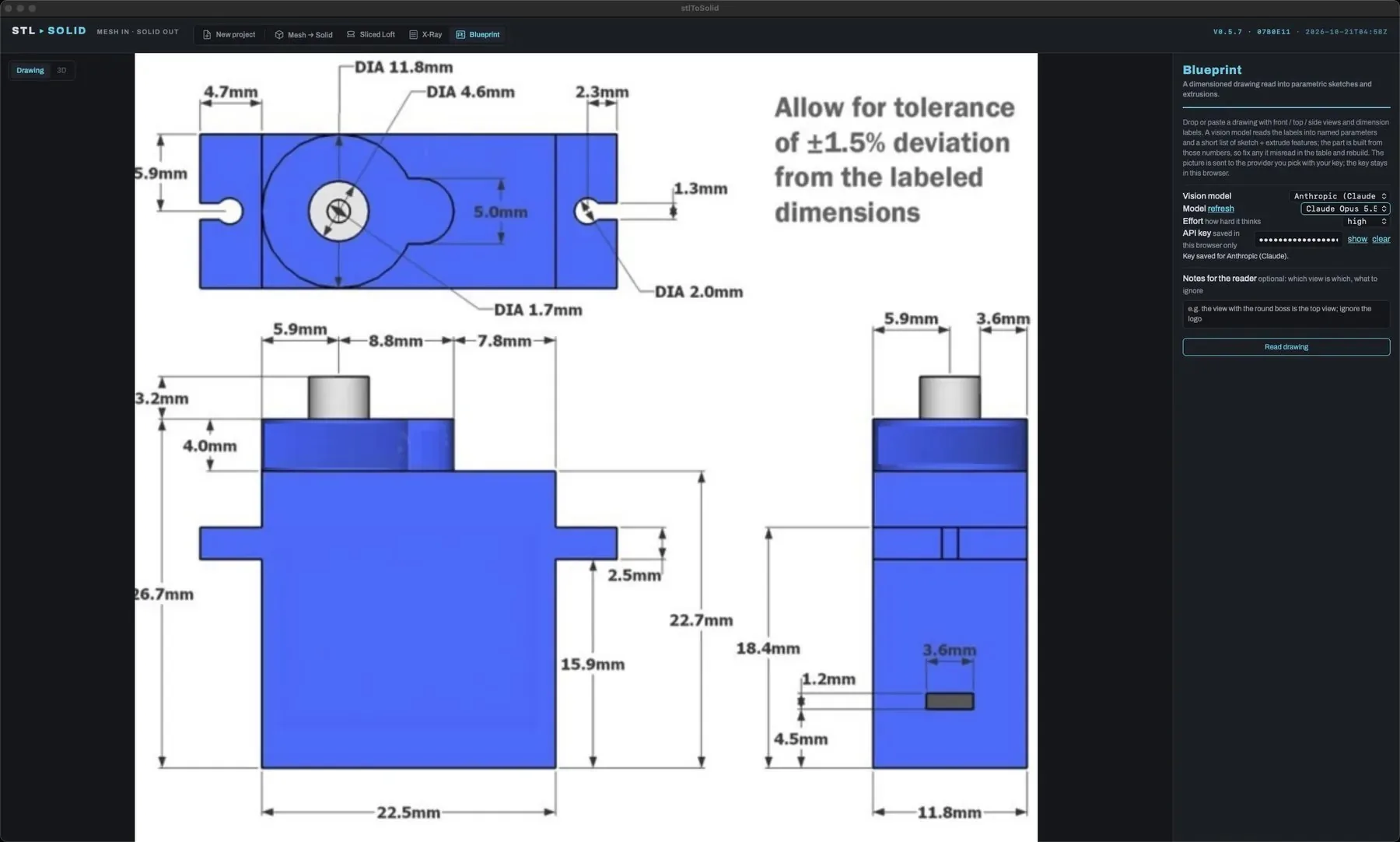
6.1 Settings: reading the drawing
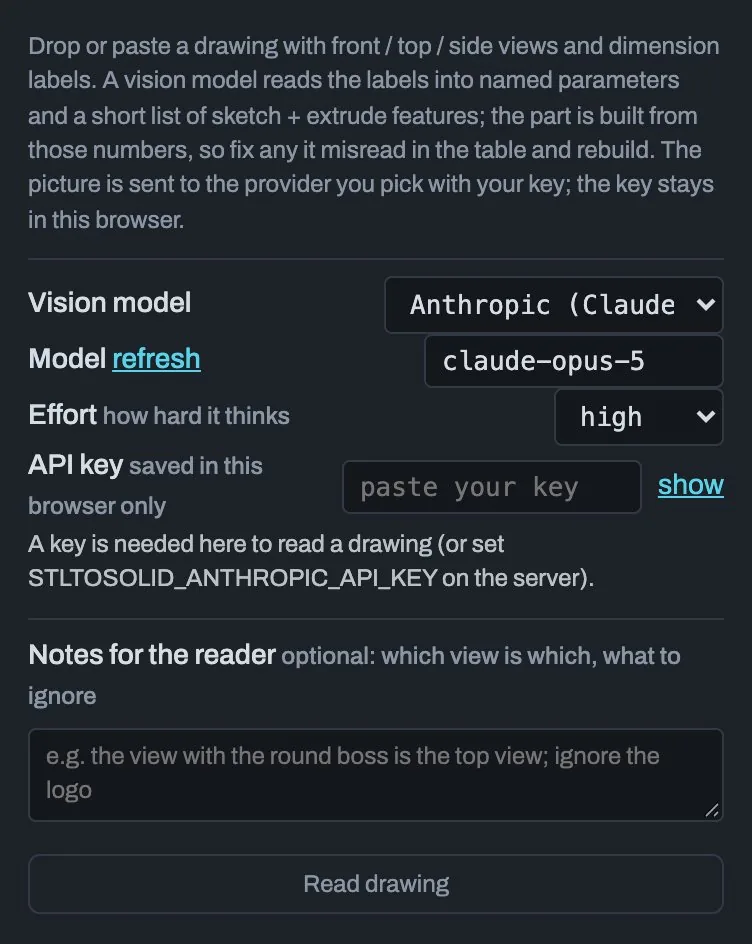
| Setting | Default | What it does |
|---|---|---|
| Vision model | Anthropic (Claude) | The provider that reads the drawing: Anthropic (Claude), OpenAI, DeepSeek, or Custom (any OpenAI-compatible server, such as Ollama running a vision model on your own computer, or OpenRouter). |
| Model | the provider's default | Choose from the list, click refresh to ask the provider again, or pick type a name… to enter one. |
| Effort | high | How hard the model thinks. high is the most careful, slowest and most expensive. medium takes about half the time. low is a quick look. |
| Base URL | — | Custom only: the server's address, for example http://localhost:11434/v1 for Ollama. |
| API key | empty | Your key for that provider. show reveals it, clear removes it. It is saved in this browser (or app) only and sent with each read. The server never stores it. Local servers usually need no key. |
| Notes for the reader | empty | Optional hints, for example "the view with the round boss is the top view; ignore the logo". |
Click Read drawing. A Cancel button appears while it reads.
Privacy: the drawing is sent to the provider you pick, with your key, and nowhere else. Choose a local model if the drawing must stay on your computer.
6.2 Checking and editing the recipe
When the read finishes, the part is built and the stage switches to the 3D tab. Use the Drawing | 3D tabs to switch between the picture and the model.
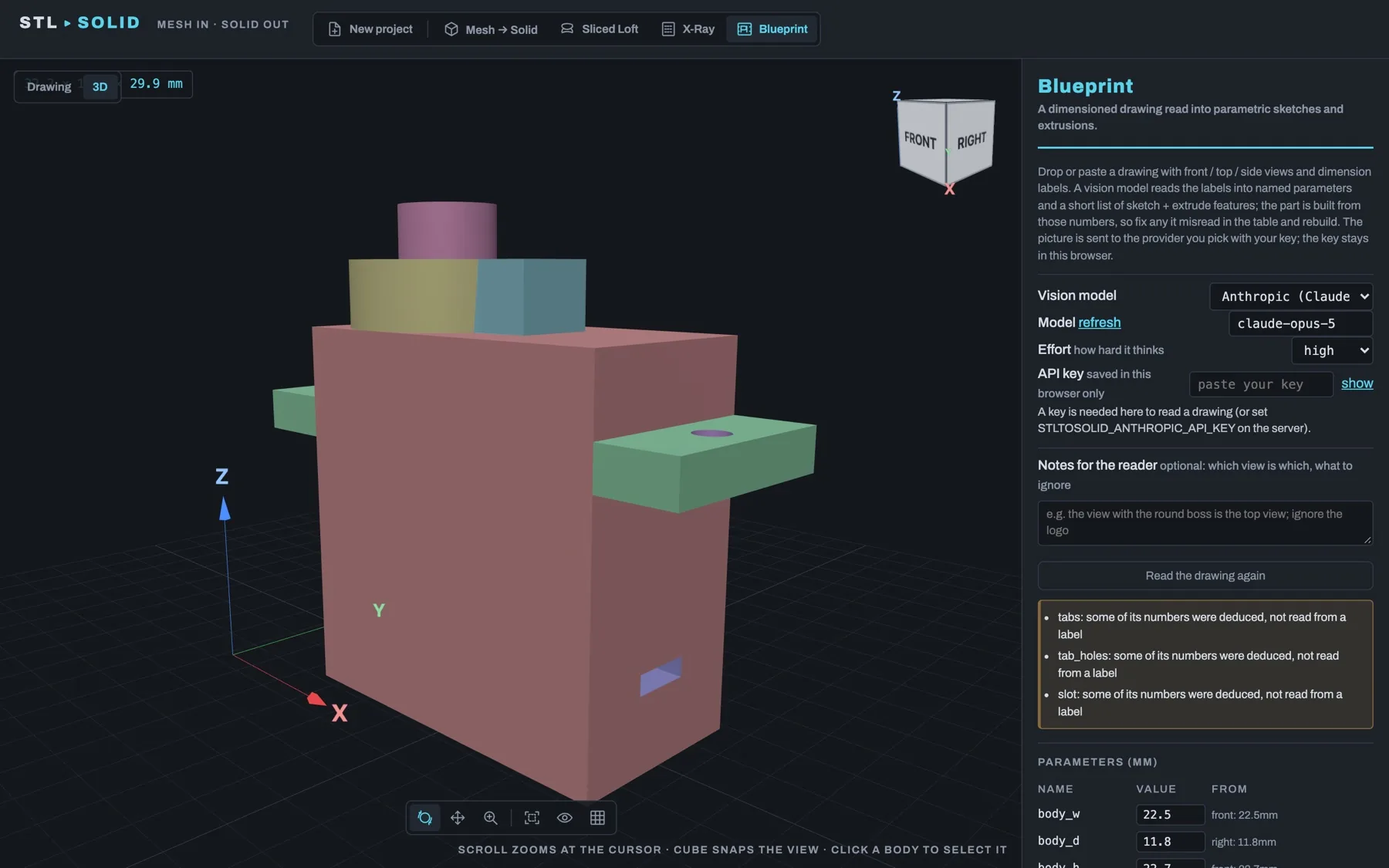
Before anything is built, the recipe goes through automatic checks: every value must resolve, shapes must have a size, cuts must remove something, and the overall size must match the drawing. Problems and guesses are listed in a yellow box.
Parameters (mm). Every number, with From saying where it came from
(for example front: 22.5mm). A ? marks a value the model had to
deduce rather than read from a label. Check those first.
Features. Each feature has a colour swatch that matches the 3D view. Hover a feature to light it up. For each feature you can see and edit:
- the operation (new body, join or cut) and its sketch plane (XY = top view, XZ = front, YZ = right side),
- offset, direction (+, − or sym) and distance, or through all for cuts,
- its shapes (rectangle, circle, slot, polygon) with their positions and
sizes (
cu/cv= centre,w/h= width and height,r= corner radius,d= diameter). A low badge marks a feature the model was unsure of.
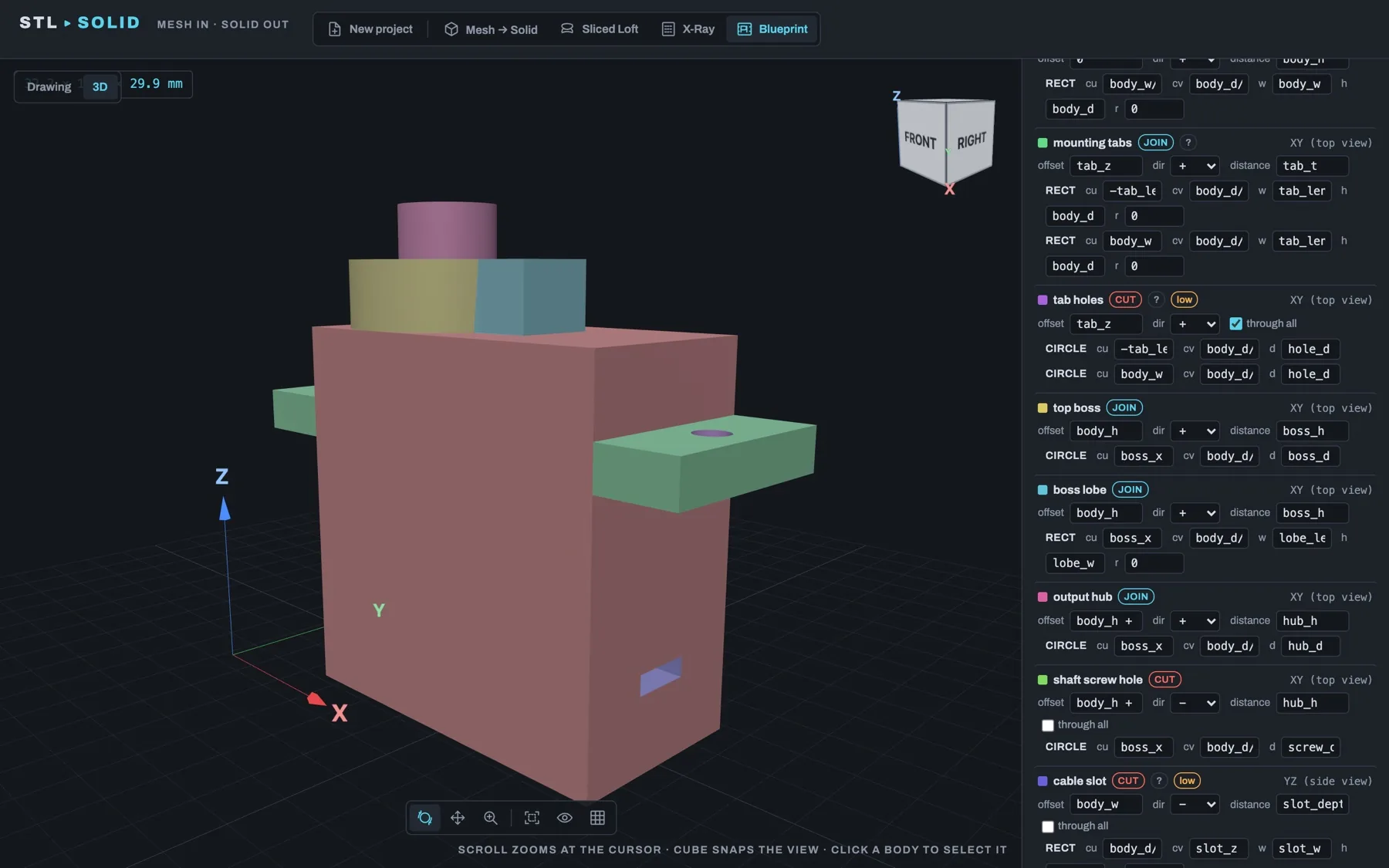
body_w/2.Any value can be a number or an expression over the parameters, like
body_w/2. Change a value and the 3D view redraws within about a second
(Redrawing object…). Click Revert to undo your edits.
6.3 Rebuilding and downloading
Click Rebuild with these values (STEP + Fusion script). This runs the checks and the build again without asking the AI model, so it costs nothing.
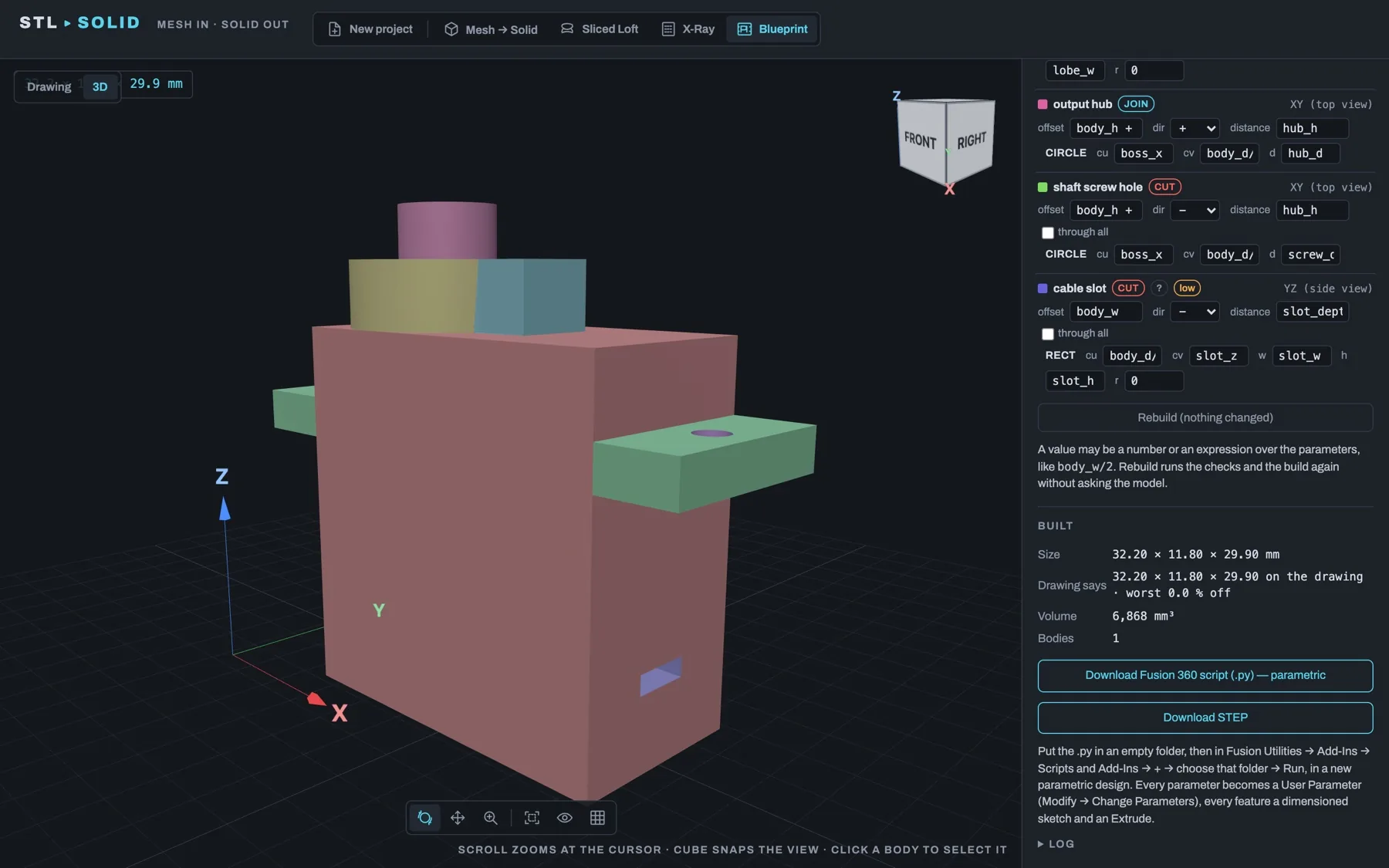
The Built table shows the size, what the drawing says (and how far off the worst dimension is), the volume, the number of bodies, and which model read the drawing. Then:
- Download Fusion 360 script (.py) — parametric. Every parameter
becomes a Fusion User Parameter (Modify → Change Parameters), and
every feature becomes a dimensioned sketch and an Extrude. Change
body_hin Fusion and the parts on top move with it. - Download STEP. The same part as a plain solid.
Click Read the drawing again to start over with a fresh read.