
Section 4
Sliced Loft
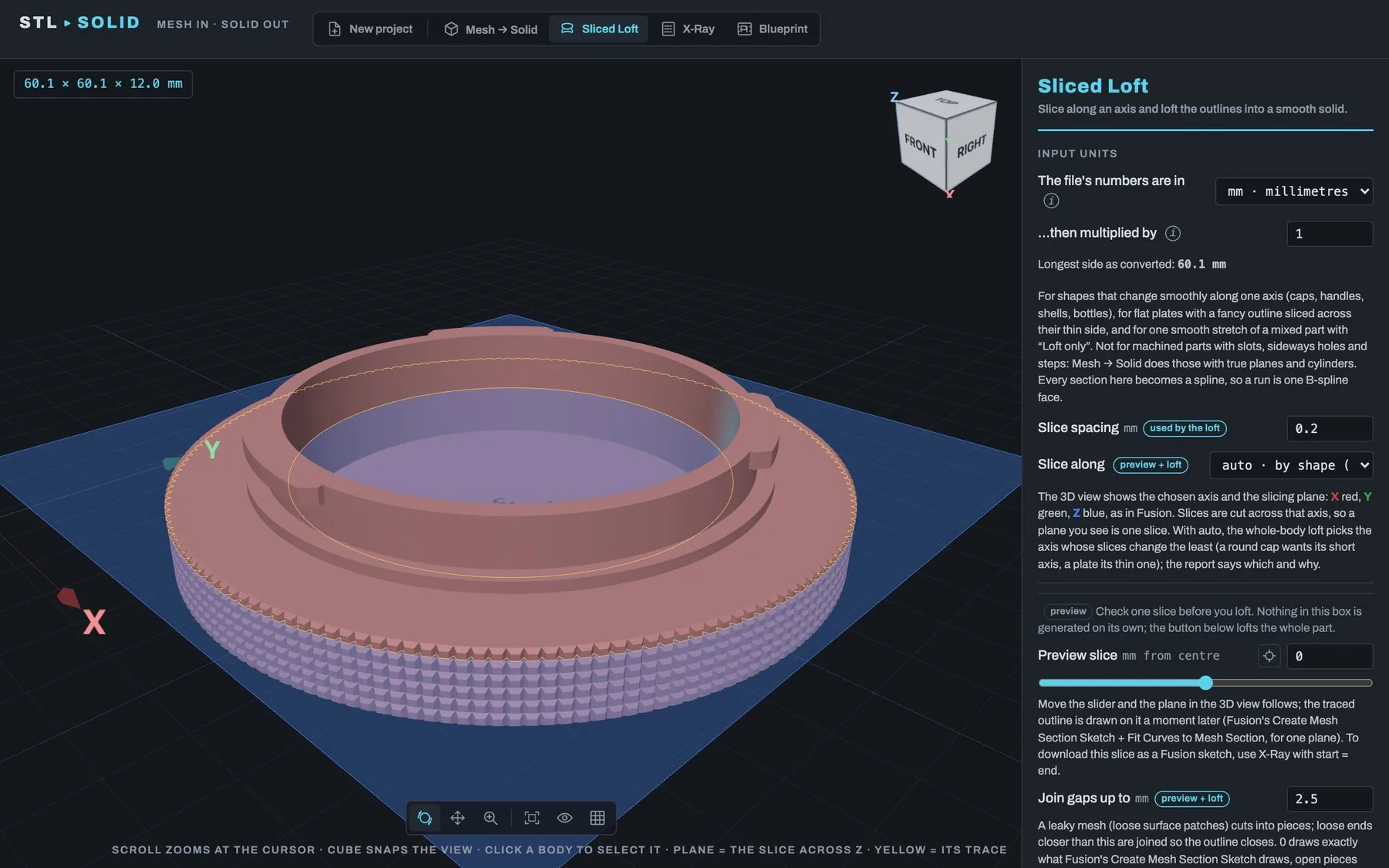
What it does: cuts the part into thin slices along one axis, redraws each outline as a smooth curve and lofts the stack into one smooth solid. It is what you would do by hand in Fusion with Create Mesh Section Sketch → Fit Curves to Mesh Section → Loft, done automatically.
Use it for: shapes that change smoothly along one direction (lens caps, handles, shells, bottles), flat plates with a fancy outline (sliced across their thin side), and one smooth stretch of a mixed part (with Loft only). Not for: machined parts with slots, sideways holes and steps. A hole drilled across the slicing direction becomes a trough. Use Mesh → Solid for those parts.
4.1 What the little tags mean
Some settings carry a small tag, so you can see which ones change the solid:
- used by the loft: changes the solid the Convert button makes.
- preview + loft: changes both the preview slice and the solid.
- preview only: changes only the preview slice. The solid ignores it.
4.2 Settings: spacing and axis
| Setting | Default | What it does |
|---|---|---|
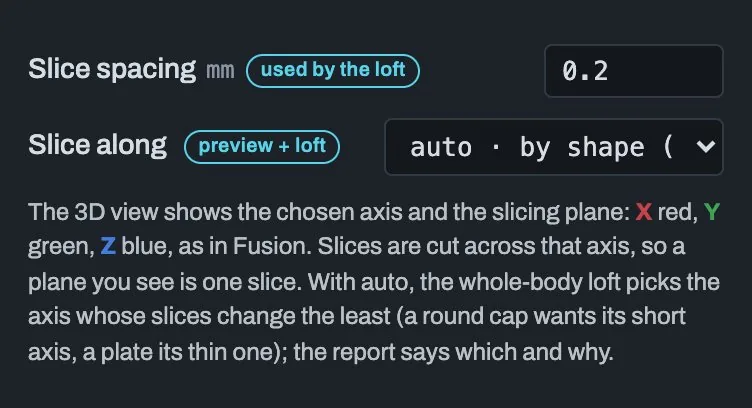
| Slice spacing | 0.2 mm | Distance between slices. Smaller follows the shape more closely. The loft itself uses at most about 60 slices per run, but the checks still measure the result against every triangle of the mesh. |
| Slice along | auto | The axis to slice across. auto · by shape picks the axis whose slices change the least: a round cap wants its short axis, a plate its thin one. The list shows the part's length along each axis, and the report says which axis was picked and why. |
4.3 Settings: the preview slice
| Setting | Default | What it does |
|---|---|---|
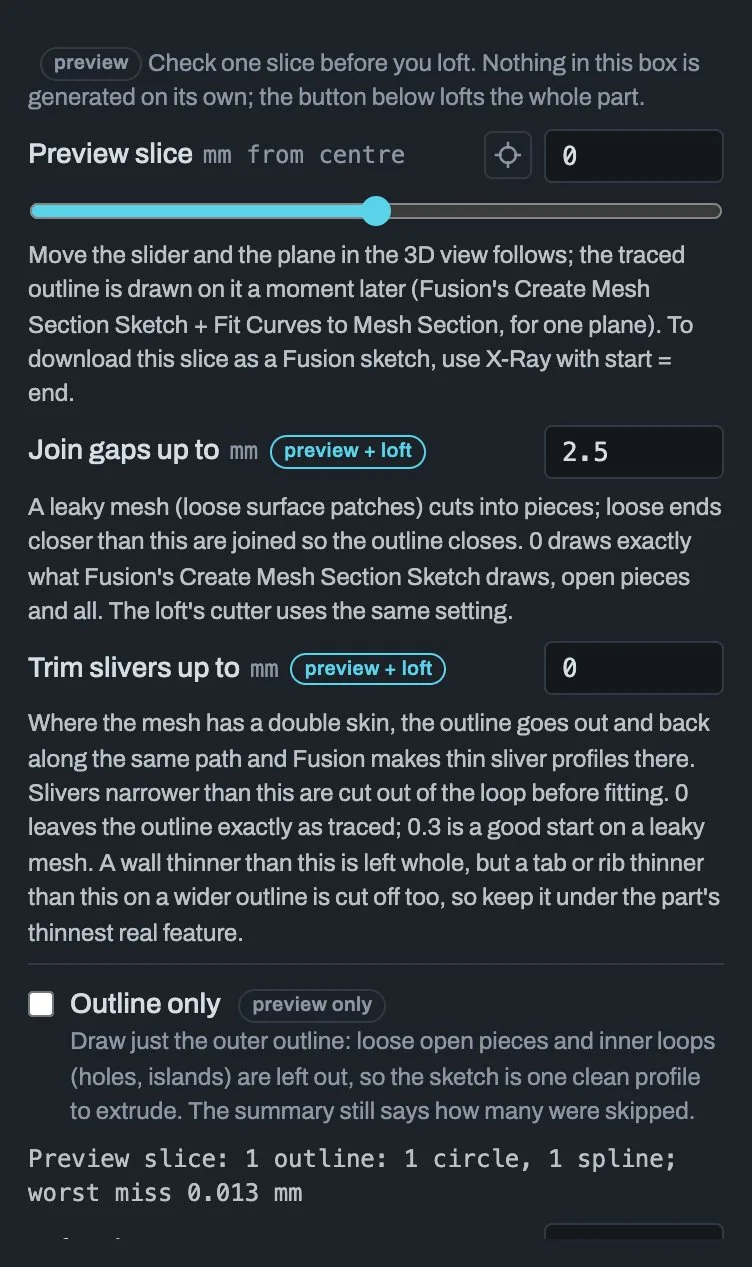
| Preview slice | 0 mm from centre | A slider and a number box that move one plane through the part. The traced outline appears on it a moment later. The crosshair button lets you click a face in the 3D view to put the plane there (Esc cancels). To download this one slice as a Fusion sketch, use X-Ray with start = end. |
| Join gaps up to | 2.5 mm | A leaky mesh (loose surface patches) cuts into open pieces. Loose ends closer than this are joined so the outline closes. 0 draws exactly what Fusion's own mesh section draws, open pieces and all. The loft uses the same value. |
| Trim slivers up to | 0 mm | Where a mesh has a double skin, the outline goes out and back along the same path and makes thin slivers. Slivers narrower than this are cut out before fitting. Keep it at 0 for a clean, watertight mesh (a warning appears if you don't). 0.3 is a good start for a leaky one. Keep it below the part's thinnest real rib or tab. |
| Outline only | off | Draws just the outer outline and leaves out holes and loose pieces. Preview only. |
The summary line reads like Preview slice: 1 outline: 1 circle, 1 spline;
worst miss 0.013 mm: how many closed outlines were found, what they are
made of, and how far the fitted curve is from the mesh at its worst point.
4.4 Settings: what to loft
| Setting | Default | What it does |
|---|---|---|
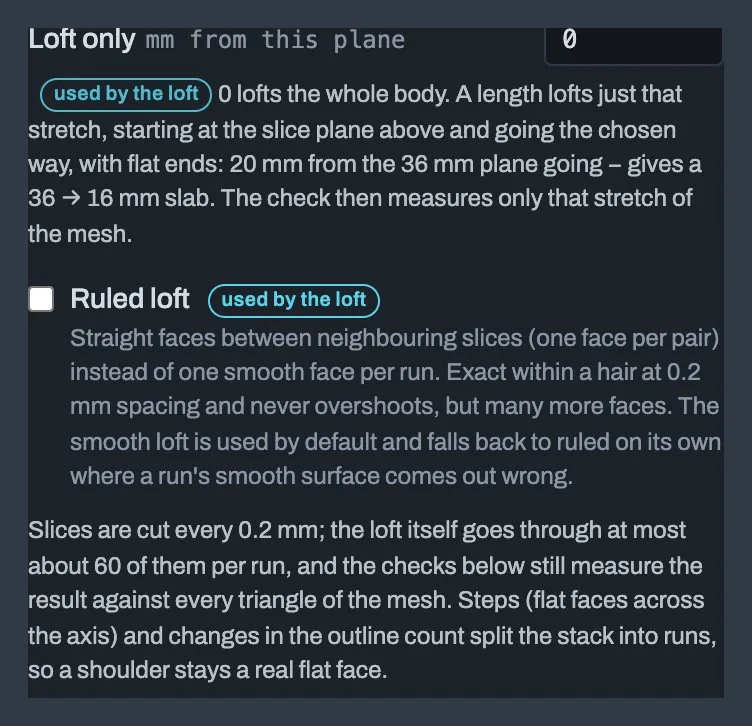
| Loft only … mm from this plane | 0 | 0 lofts the whole body. A length lofts just that stretch, starting at the preview plane, with flat ends. The preview slider is then labelled Loft starts at. For example, 20 mm from the 36 mm plane going − gives a 36 → 16 mm slab. The check then measures only that stretch of the mesh. |
| Going | − | Shown when Loft only is above 0. + goes along the axis arrow, − against it. |
| Ruled loft | off | Straight faces between neighbouring slices (one face per pair) instead of one smooth face per run. Exact within a hair at 0.2 mm spacing and never overshoots, but many more faces. The smooth loft switches to ruled by itself for any run whose smooth surface comes out wrong. |
The acceptance gate appears below these settings too (see section 3.2). With Sliced Loft the limits are measured and shown, not enforced: you chose the method, so its solid is written whenever it can be built. Only a loft that cannot be built at all falls back to a faceted copy.
4.5 Converting and downloads
Click Convert to STEP. The stack is split into runs wherever a flat step crosses the axis or the number of outlines changes, so a shoulder stays a real flat face. Each run becomes one smooth face. Holes along the axis are lofted and cut.
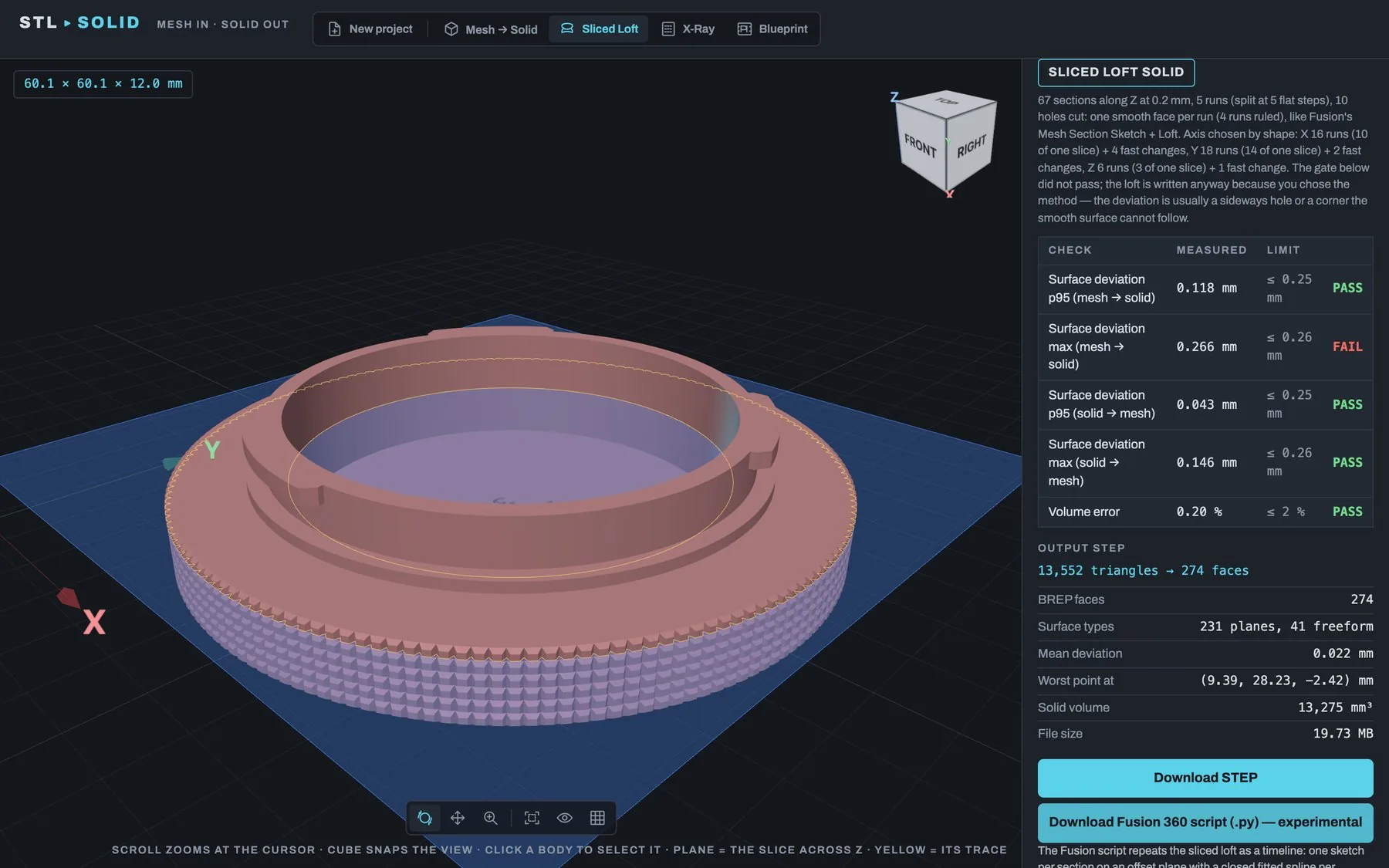
Downloads: Download STEP and Download Fusion 360 script (.py) — experimental. The script repeats the loft as a Fusion timeline: one sketch per section on an offset plane, then one Loft per run, with holes as Loft cuts.