
Section 2
Getting started
2.1 The screen
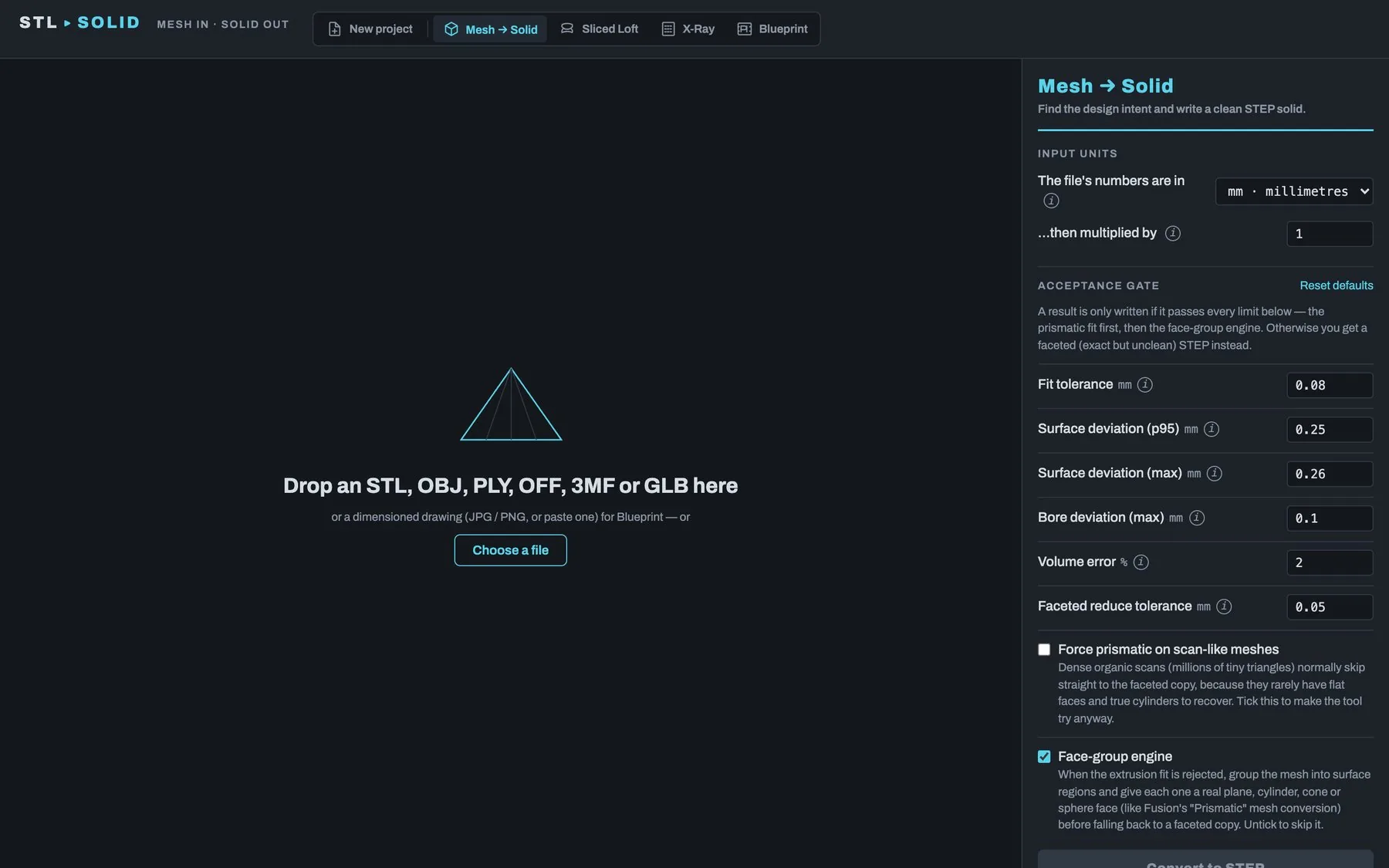
The window has three areas:
- Top bar. The New project button (start over with another file) and the four tool buttons: Mesh → Solid, Sliced Loft, X-Ray and Blueprint. The highlighted button is the active tool. Hover over a button for a one-line description.
- Stage (left). Drop a file here. Once loaded, it shows the part in 3D (or, for Blueprint, the drawing).
- Rail (right). The active tool's settings, its action button and, after a run, the report with the download buttons.
You can switch tools at any time. The loaded file stays, and each tool keeps its own settings.
2.2 Loading a file
Drag a file onto the stage, or click Choose a file. You can also paste a drawing image from the clipboard with Cmd+V / Ctrl+V.
- Meshes:
.stl,.obj,.ply,.off,.3mf,.glb,.gltf. A mesh opens in the mesh tools. If Blueprint was active, the app switches to Mesh → Solid. - Drawings:
.jpg,.png,.webp. A drawing always opens in Blueprint.
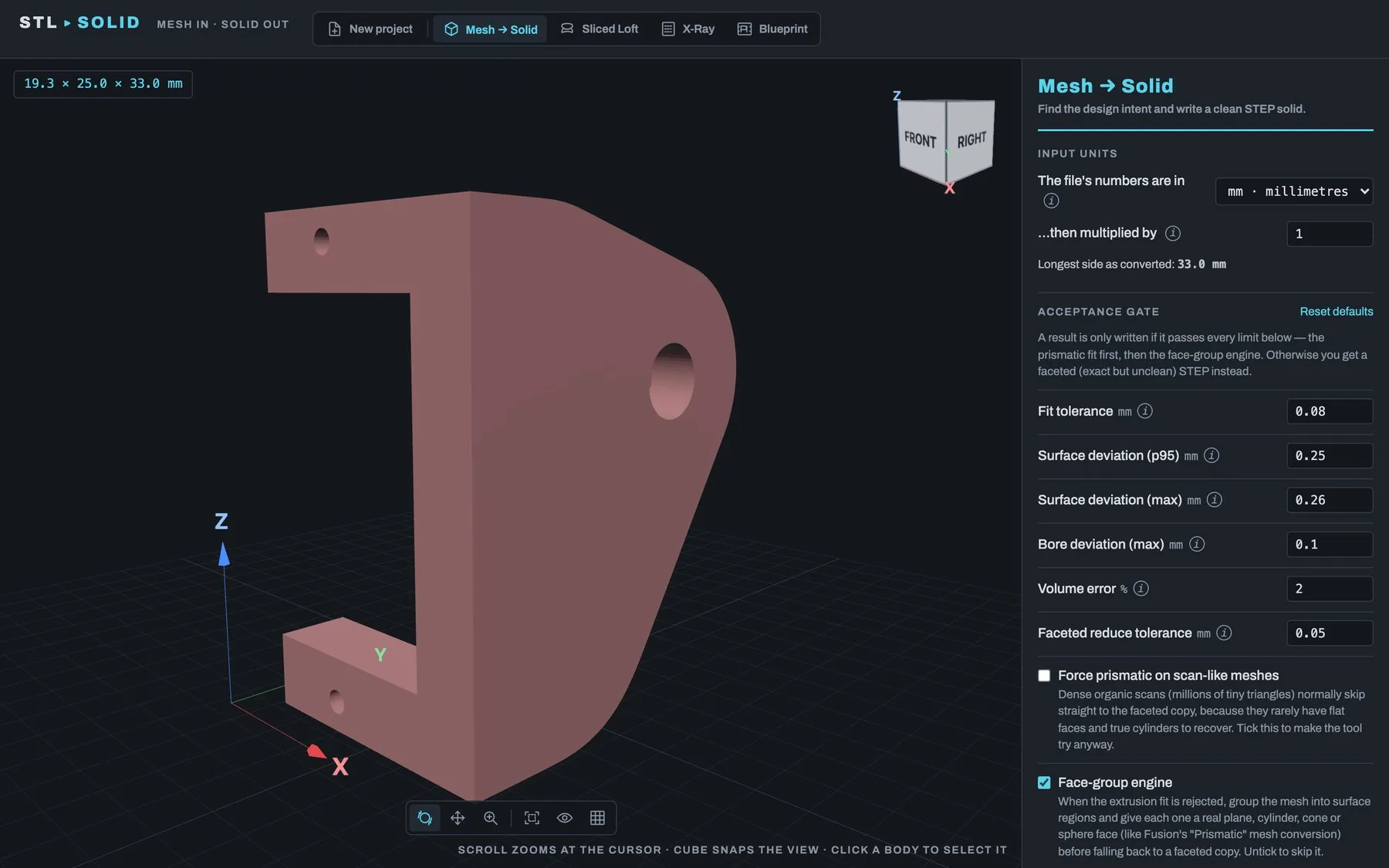
The part's size appears in the top-left corner of the stage (for example
19.3 × 25.0 × 33.0 mm). After a run, the Input mesh table in the
report lists its triangle count, whether it is watertight (fully closed),
how many bodies it holds, its bounding box, surface area and volume.
To start again with a different file, click New project.
2.3 Input units and scale
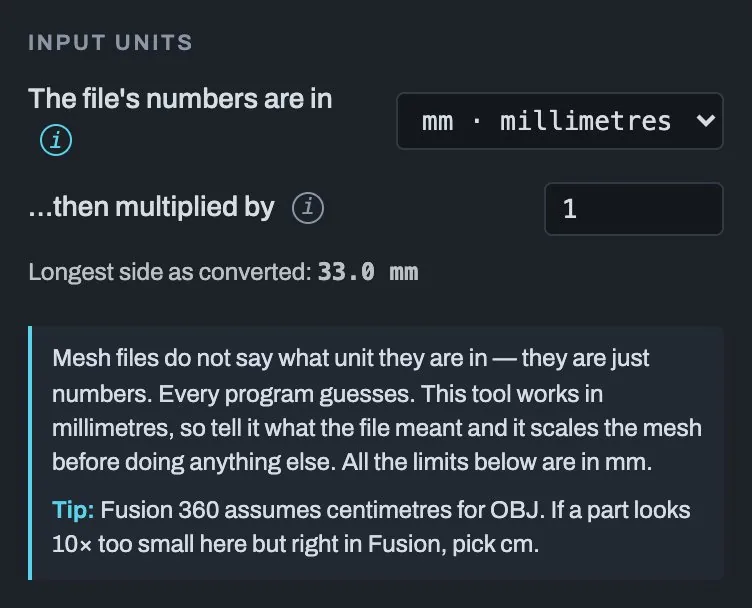
Mesh files do not record their units. They are just numbers. stlToSolid works in millimetres, so tell it what the file meant. These two settings are shared by Mesh → Solid, Sliced Loft and X-Ray.
| Setting | Default | What it does |
|---|---|---|
| The file's numbers are in | mm | The unit the file was saved in: mm, cm, inches, feet or metres. The mesh is scaled to millimetres before anything else happens. |
| …then multiplied by | 1 | An extra factor on top of the unit. Units can only make a part bigger (cm is ×10, inches ×25.4), so use this to shrink one. For example, 0.1 fixes a part designed in centimetres but saved as millimetres. Leave it at 1 unless the size looks wrong. |
The line Longest side as converted shows the result, so you can spot a wrong scale before a long conversion, not after. If the part looks unusually large or small, a yellow Check the size note suggests a unit or factor and offers a one-click Use … button.
Tip: Fusion 360 assumes centimetres for OBJ files. If a part looks 10× too small in stlToSolid but right in Fusion, pick cm.
2.4 Picking bodies
Some files hold several separate pieces ("bodies"). A scanned controller, for example, may have dozens. When that happens a Bodies panel appears at the top of the rail.
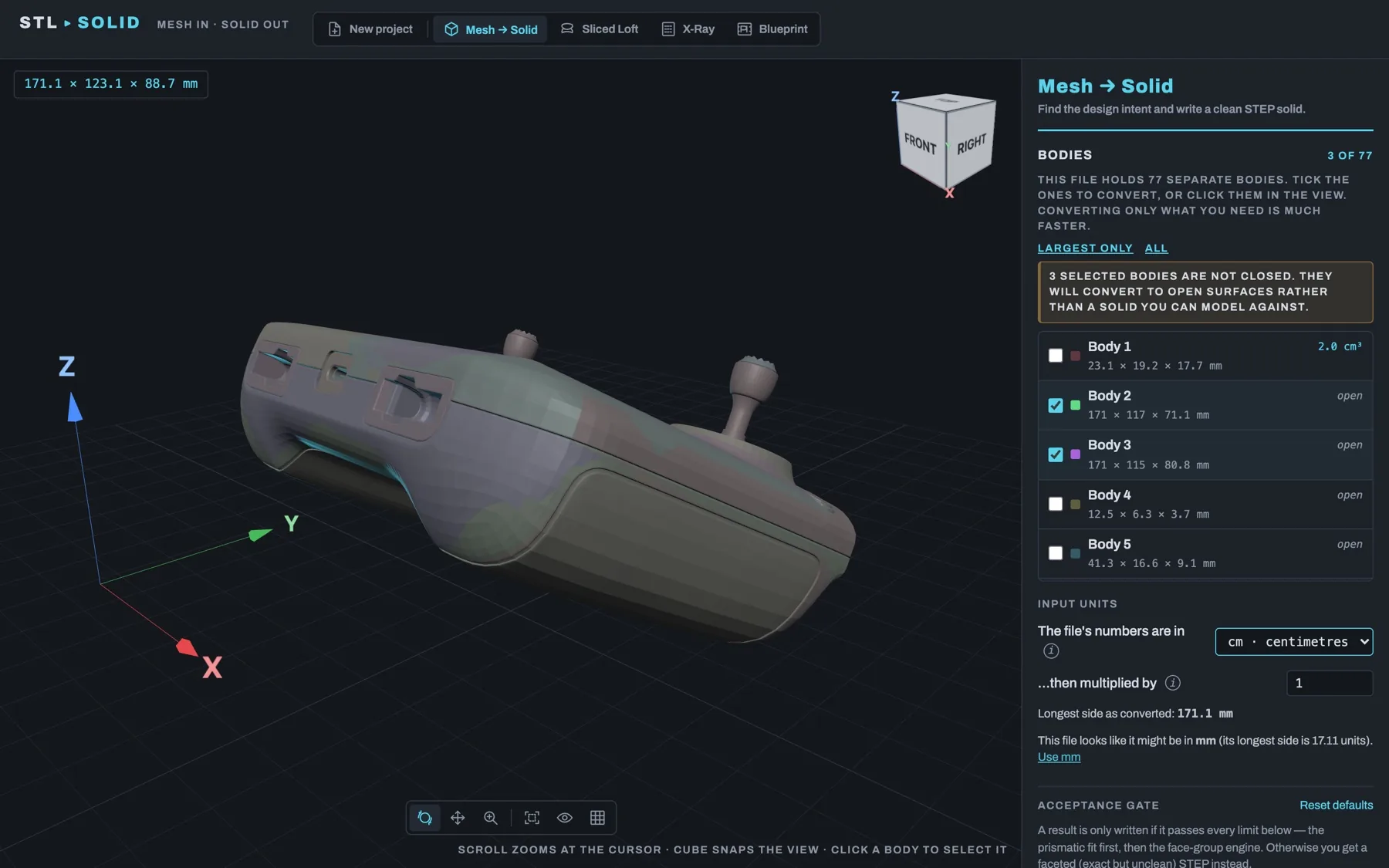
- Tick the bodies you want to convert, or click them in the 3D view. Hovering a row lights up that body.
- Largest only picks the main bodies. All ticks everything.
- Each row shows the body's size and volume. Bodies marked open are not closed. They convert to open surfaces rather than a solid, and a warning tells you when you have picked any.
Converting only what you need is much faster and uses much less memory.
2.5 Moving around the 3D view
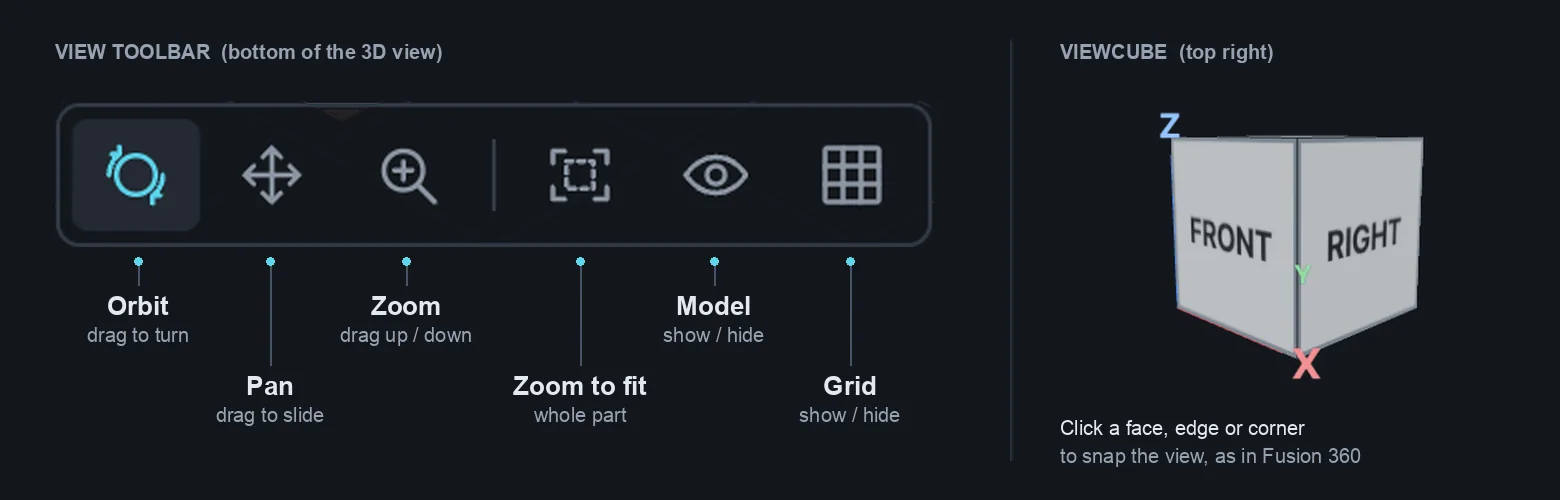
| Control | What it does |
|---|---|
| Scroll wheel | Zooms in and out at the cursor. |
| ViewCube (top right) | Click a face, edge or corner to snap the view, as in Fusion 360. |
| Orbit (bottom toolbar) | Left-drag turns the view. |
| Pan | Left-drag slides the view. |
| Zoom | Left-drag up to zoom in, down to zoom out, at the point you press. |
| Zoom to fit | Frames the whole part. |
| Eye | Hides or shows the model. Slice traces stay visible. |
| Grid | Hides or shows the floor grid. |
The coloured triad shows the axes: X red, Y green, Z blue, the same as Fusion 360.