
Section 7
Fusion 360 add-in: Mesh to Outline
What it does: the X-Ray and single-slice tracing, running inside Fusion 360 itself. Pick a mesh body and a plane, and it draws the section as a normal sketch of lines, arcs, circles and fitted splines. Or pick a start and an end and it draws a whole stack, and can extrude it into one solid. It is Fusion's Create Mesh Section Sketch followed by Fit Curves to Mesh Section, in one button, for as many planes as you like.
It runs on Fusion's own Python. Nothing is uploaded, and no server or app is needed.
7.1 Installing
The add-ins are not in a public release yet. The website's add-ins button says coming soon until they are.
- Download the add-ins zip from the latest release and unzip it.
- Copy the
MeshSectionSketchfolder into Fusion's add-ins folder: - Mac:~/Library/Application Support/Autodesk/Autodesk Fusion 360/API/AddIns/- Windows:%APPDATA%\Autodesk\Autodesk Fusion 360\API\AddIns\ - In Fusion: Utilities → Add-Ins → Scripts and Add-Ins → Add-Ins tab, select MeshSectionSketch and click Run. It starts with Fusion from then on.
It needs a current Fusion (with its built-in Python 3.14). numpy comes inside the add-in.
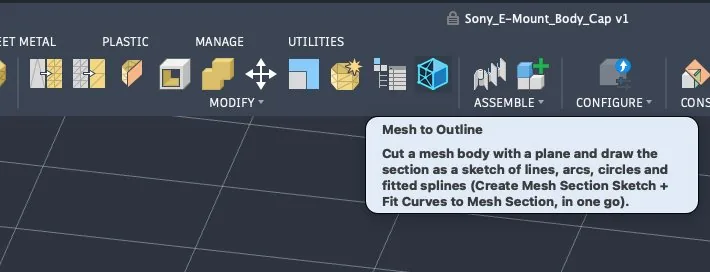
If the Mesh panel is not found, the button goes under Utilities → Add-Ins instead. The Text Commands palette says where.
7.2 Before you start
- Insert → Insert Mesh, and set the units to mm.
- For a single section or a stack: make a construction plane where you want the cut (Construct → Offset Plane), or use any flat face.
- Mesh tab → Modify → Mesh to Outline.
7.3 The settings
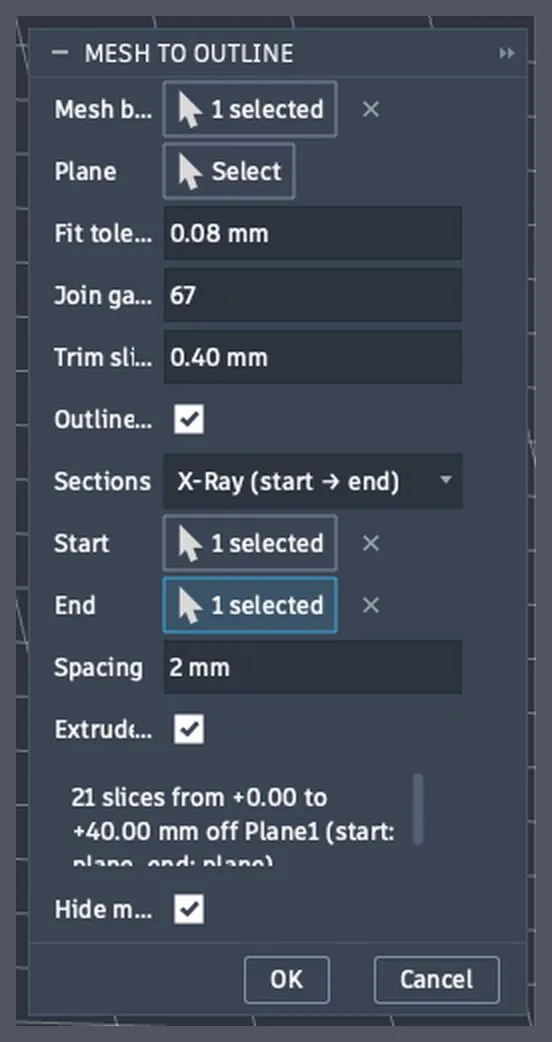
| Setting | Default | What it does |
|---|---|---|
| Mesh body | — | The mesh body to cut. |
| Plane | — | A construction plane or a flat face to cut on. In X-Ray mode it is optional: it only sets the slice direction (see below). |
| Fit tolerance | 0.08 mm | How far a fitted curve may sit off the raw section. |
| Join gaps up to | 2.5 mm | Loose ends closer than this are joined, so an outline broken only by hairline cracks between surface patches comes back as one closed profile. 0 draws exactly what Fusion's own mesh section draws. Raise it if the outline still comes back in pieces. Lower it if two unrelated pieces got joined. |
| Trim slivers up to | 0 mm | Where the mesh has a double skin, the outline goes out and back along the same path and Fusion makes thin sliver profiles. Slivers narrower than this are cut out before fitting. 0.3 is a good start on a leaky mesh. 0 leaves the outline as traced. |
| Outline only | off | Just the outer outline. Loose open pieces and inner loops (holes, islands) are skipped, so each sketch is one clean profile to extrude. The summary still says how many were skipped. |
| Sections | One | One: a single sketch on the plane. Stack (count + direction): several sketches on offset planes. X-Ray (start → end): a stack between two picks, like the app's X-Ray. |
| Spacing | 0.2 mm | Stack and X-Ray: the distance between sketches. |
| Sections (count) | 10 | Stack only: how many sketches, 2 to 400. |
| Direction | Along the plane normal (+) | Stack only: along the plane's normal (+), against it (−), or both sides of it. |
| Start / End | — | X-Ray only: where the stack starts and ends. Pick a construction plane or flat face parallel to the slicing plane, or click on the mesh. A click on a flat mesh face across the slice direction snaps to that face (just inside the material, so the cut catches it). A click anywhere else takes the height of the spot clicked. The end is always included, and start past end is fine. |
| Extrude each slice | off | Stack and X-Ray: each sketch's profile is extruded to the next slice and joined into one body, a stepped solid. Use this instead of Loft, which usually fails between two complex profiles. With Outline only ticked, only the outer shape is extruded. Without it, inner loops are filled as well. At 0.5 mm spacing the steps are hard to see. |
| (info line) | — | X-Ray only: how many slices your picks and spacing make, and between which heights. |
| Hide mesh after | off | Hides the mesh body when it is done, so you can see the result. |
The plane in X-Ray mode. If you leave Plane empty, the slices run parallel to the Start plane (or the End plane). You need a Plane only when both Start and End are clicks on the mesh.
7.4 Walk-through: from mesh to solid with X-Ray
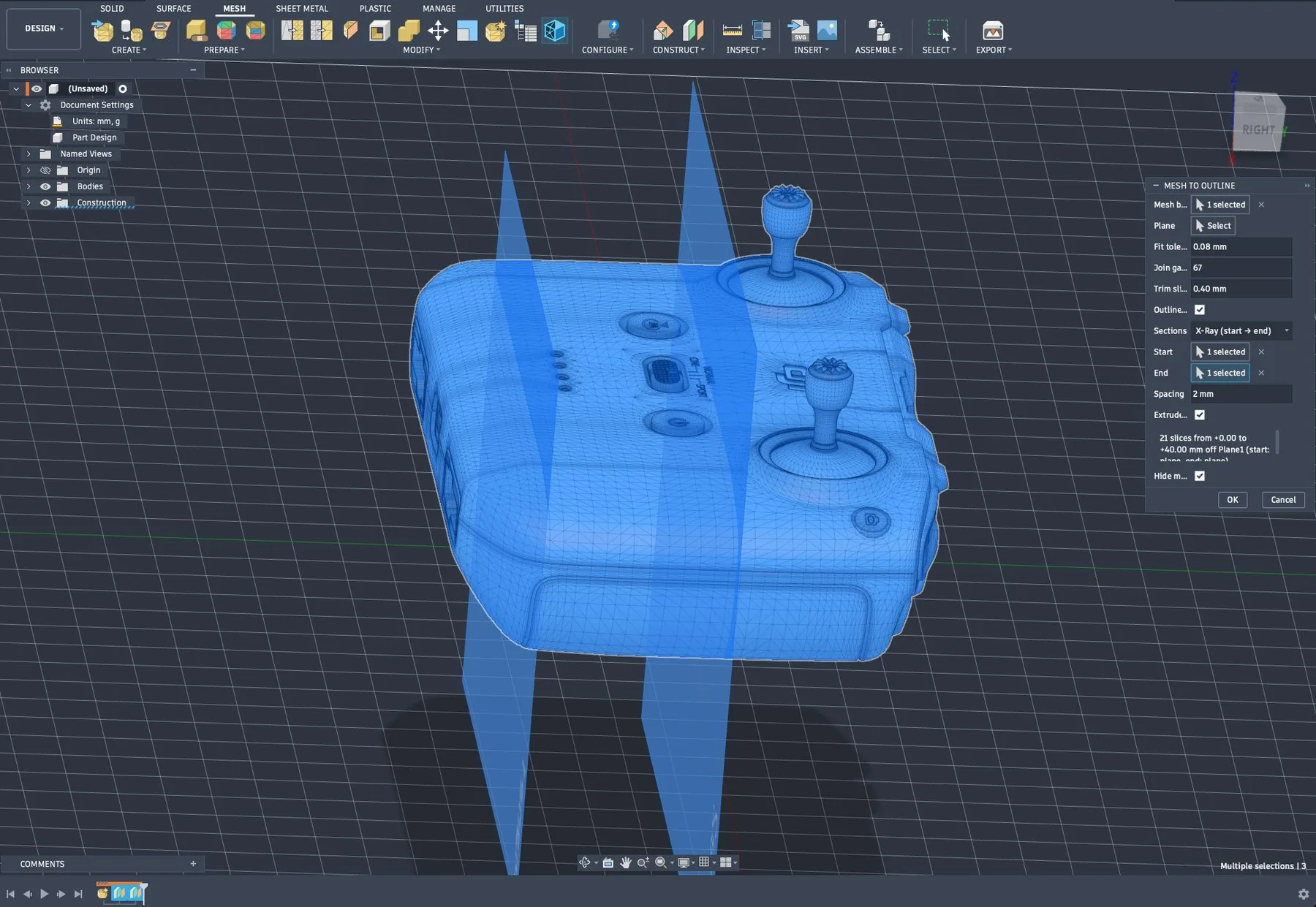
This is a real run on a scanned controller: 21 slices, 2 mm apart, then extruded into one body.
1. Pick two planes. Choose the mesh body, set Sections to X-Ray (start → end), and pick a Start and an End. Set the Spacing. The info line says how many slices that makes (here 21, from +0.00 to +40.00 mm). Tick Extrude each slice if you want a solid, then click OK.
2. Watch it trace. Each slice is cut and fitted in turn. A progress dialog counts the sections. Cancel stops it after the current one.
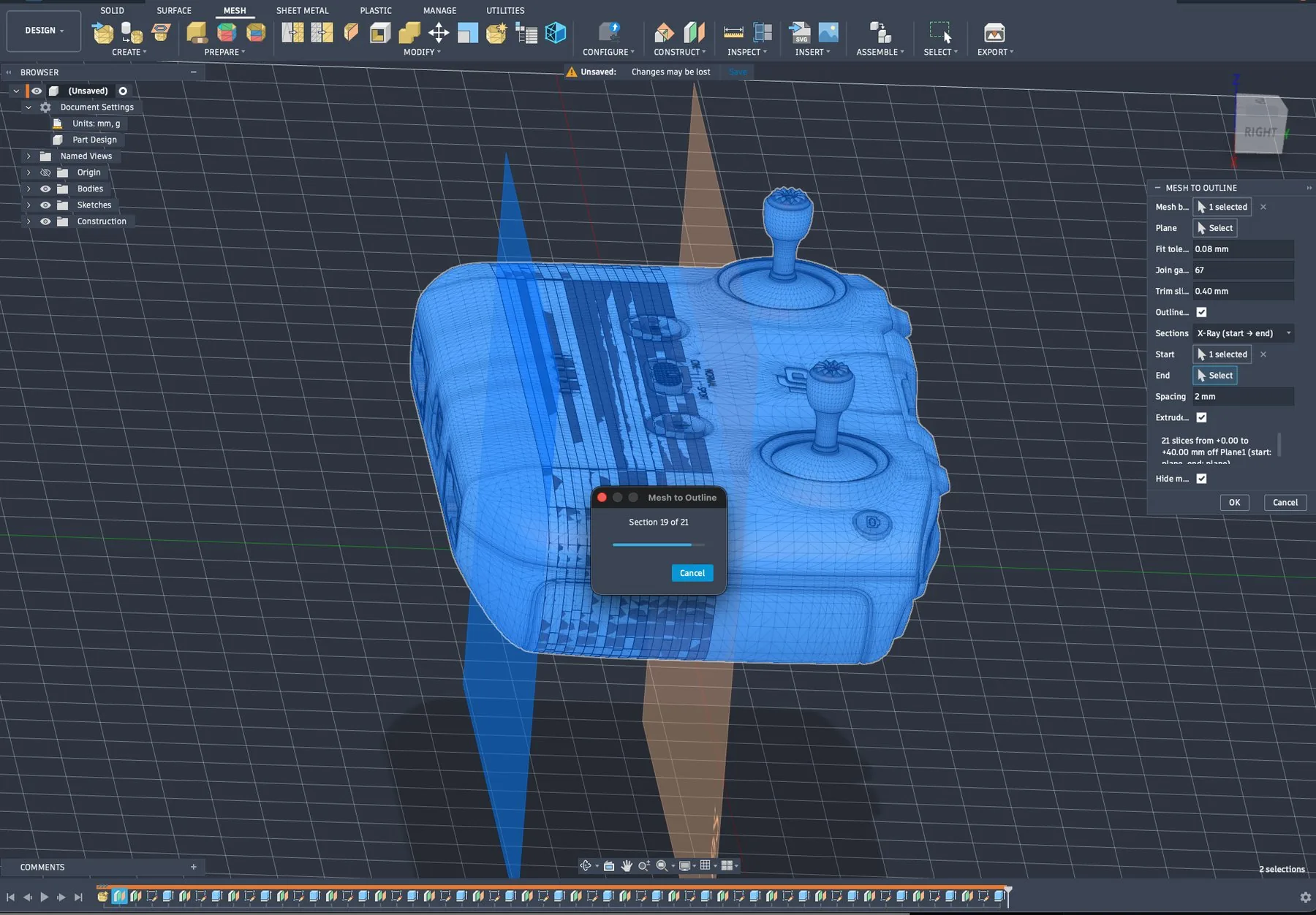
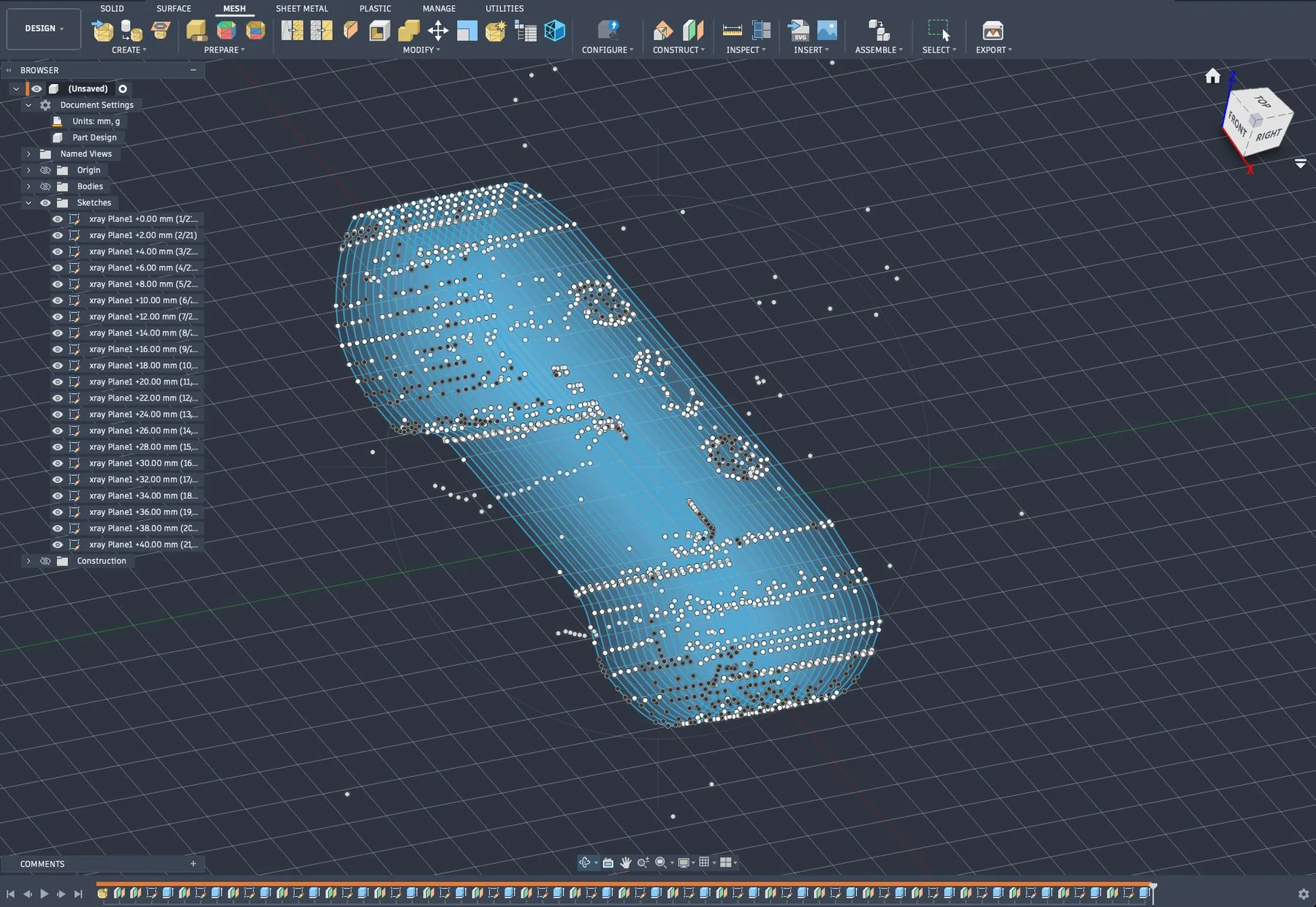
3. One sketch per slice. Every slice lands as its own sketch on its
own plane, listed in the browser from first to last and named like
xray Plane1 +4.00 mm (3/21). When it finishes, a message box lists each
sketch with what it holds (outlines, open curves, lines, arcs, circles,
splines, gaps joined, worst miss).
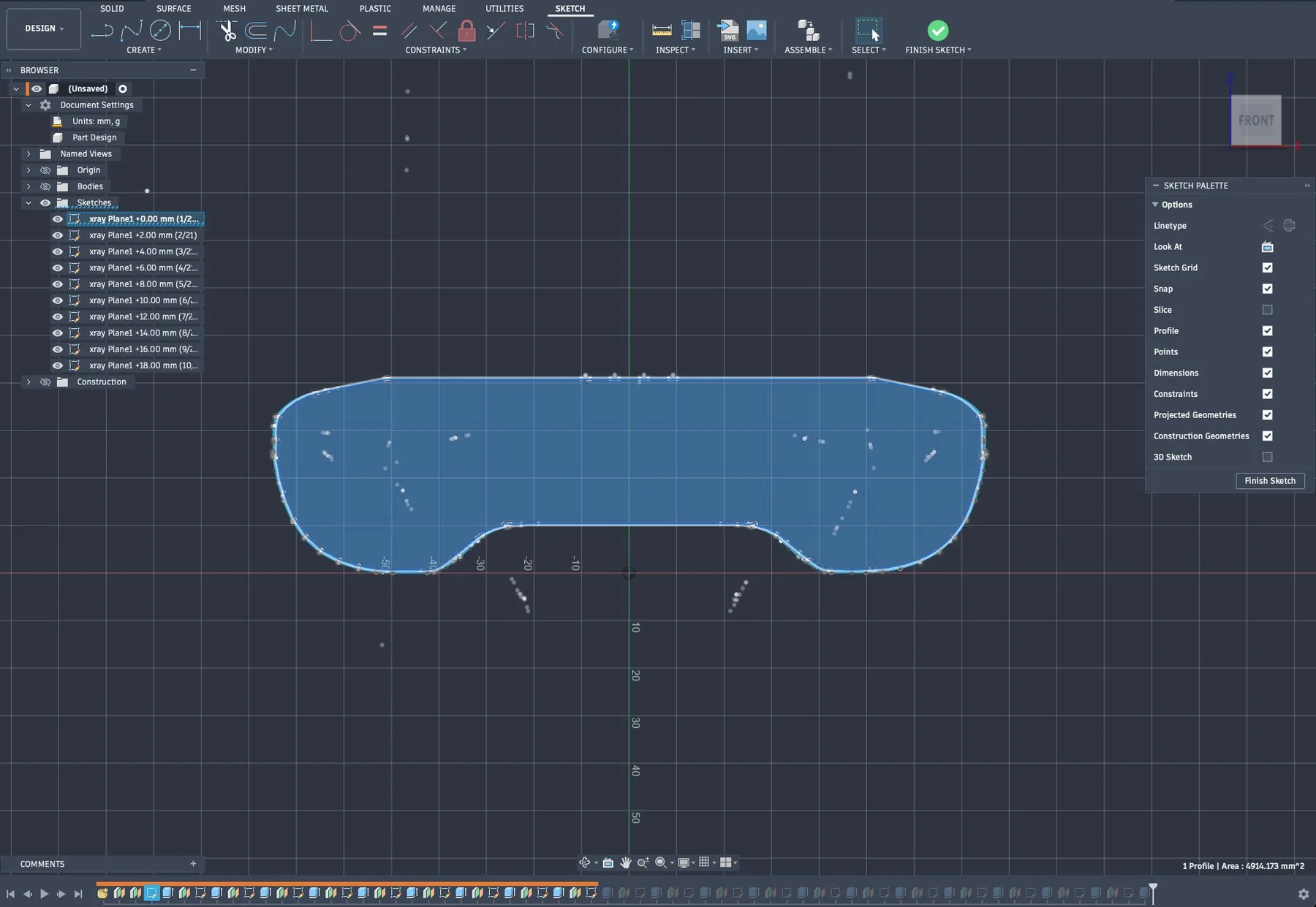
4. A closed profile, every time. Open any sketch: it is one closed outline that Fusion sees as a profile, ready to extrude, offset or dimension.
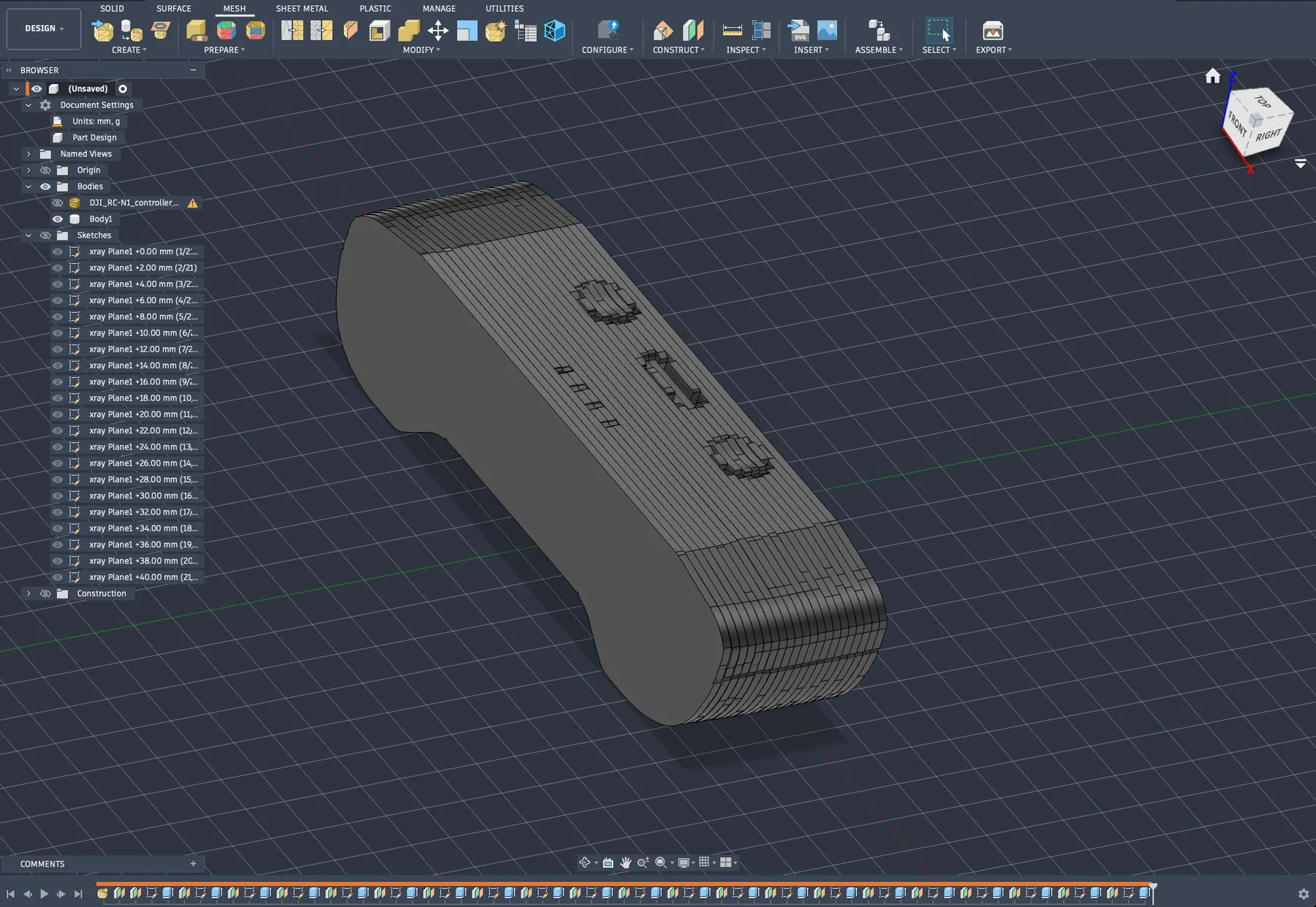
5. A solid you can design on. With Extrude each slice ticked, the stack becomes one stepped solid body in the timeline, next to the mesh.
A single section takes a second or two on a 300,000-triangle mesh. The sketches go in the root component. A mesh inside a component is read in root coordinates, so the curves land on the mesh either way.
7.5 Messages you may see
| Message | What to do |
|---|---|
| Empty cut skipped | The plane misses the mesh there. Fusion's own section sketch would be empty too. |
| WARNING: the outline did not close in N slices | The mesh has holes wider than Join gaps at those slices (a vent grille's slots, say). Those outlines stay open, Outline only drops them, and those slices get no slab, which leaves a groove in the solid. Raise Join gaps to the value the warning gives and run again. |
| WARNING: N slabs could not be extruded | The sketch was drawn, but Fusion found no profile to extrude there. The per-slice list says why. |
| numpy could not be imported / Fusion's Python is now X.Y | Fusion updated its Python. Install the matching add-in version. |
7.6 STL to Solid add-in (preview)
A second add-in, STL to Solid, sits next to Mesh to Outline. It does the face-group conversion (section 3.1, route 2) inside Fusion: it fits planes, cylinders, cones, spheres and tori to a mesh body, builds each one slightly oversized as a surface, and lets Fusion's Boundary Fill keep the material. It is an early preview. It works on clean, CAD-like meshes, and refuses open shells and scans.
| Setting | Default | What it does |
|---|---|---|
| Mesh bodies | — | The mesh bodies to convert. |
| Fit tolerance | 0.08 mm | How far a triangle may sit off a fitted surface. |
| Expand surfaces | 1.0 mm | How far each surface is grown past its region, so neighbours overlap for Boundary Fill. |
| Max regions | 200 | Bodies with more fitted surfaces than this are refused. |
| Keep tool surfaces | off | Keeps the surface bodies (hidden) after the fill, for checking. |
| Run Boundary Fill | on | Untick to only create the surfaces and run Boundary Fill yourself. |
| Hide mesh after | on | Hides the mesh body when a solid was made. |
| Diagnose rejected tools (slow) | off | If Fusion refuses the fill, finds which surface it rejects. |
If the log says Fusion could not compute the cells, try Expand 0.5 or 2 mm, or use Mesh → Solid in the app instead.